

 Back
Back















GPSWOX Mobile
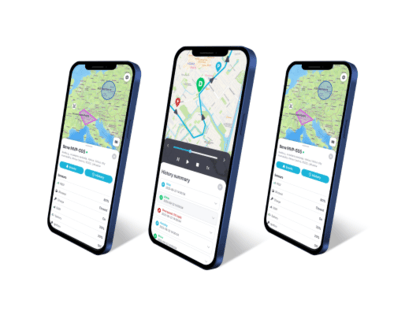
Access software features on the phone
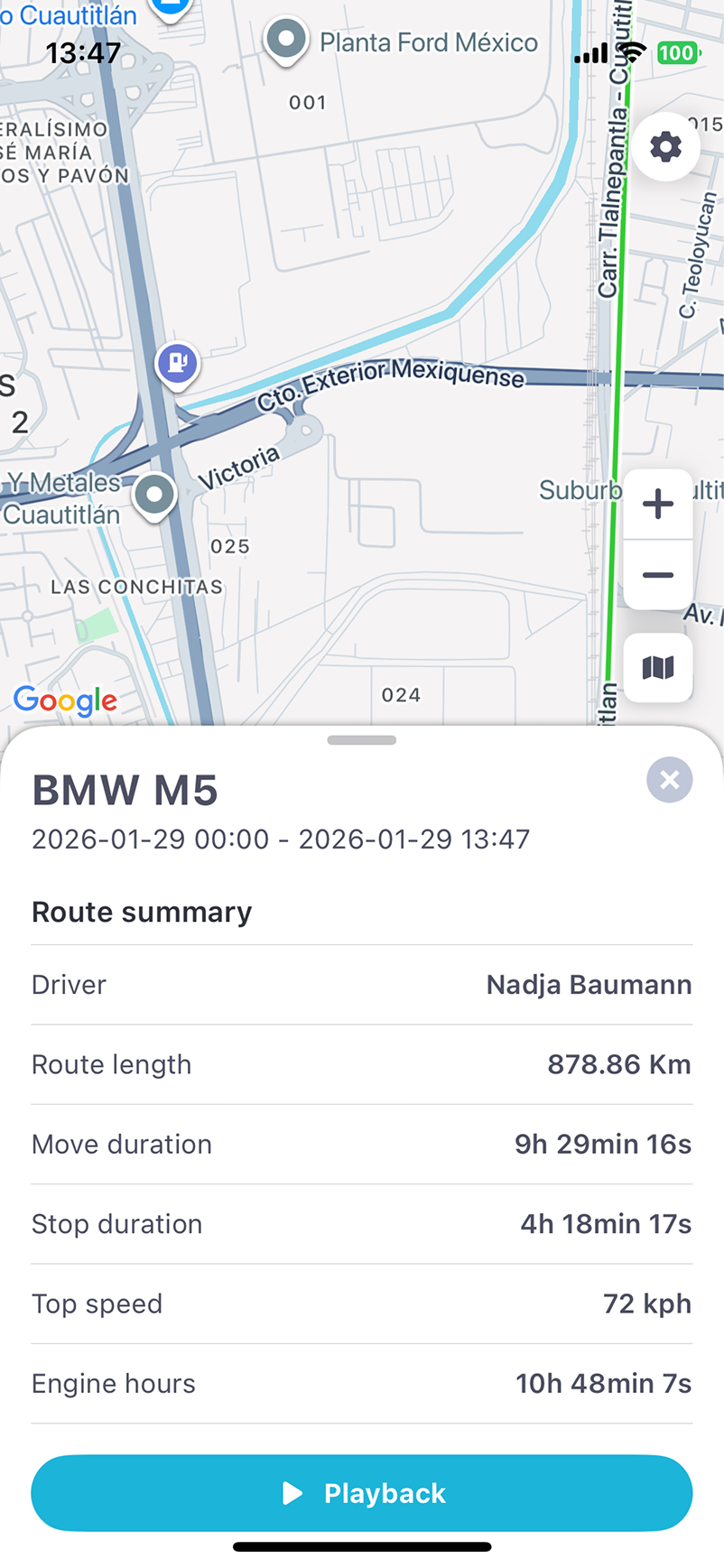


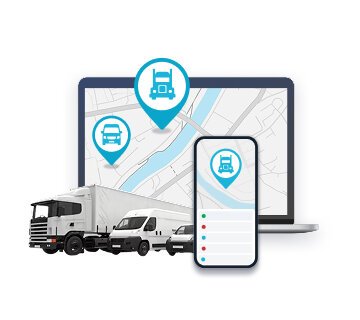
- Real Time Tracking
- History and Reports
- Alerts and notifications
- Geofencing, fuel savings
- Sensors, accessories etc.
- For personal use or business
Want to get this app with your brand (?). Get in touch
Download Mobile App For Free:


Manual
Free GPSWOX Mobile for Personal Use or Business. Use all of GPSWOX Tracking software features on your mobile easily.
Key Features:
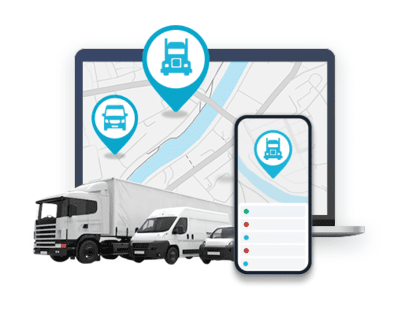
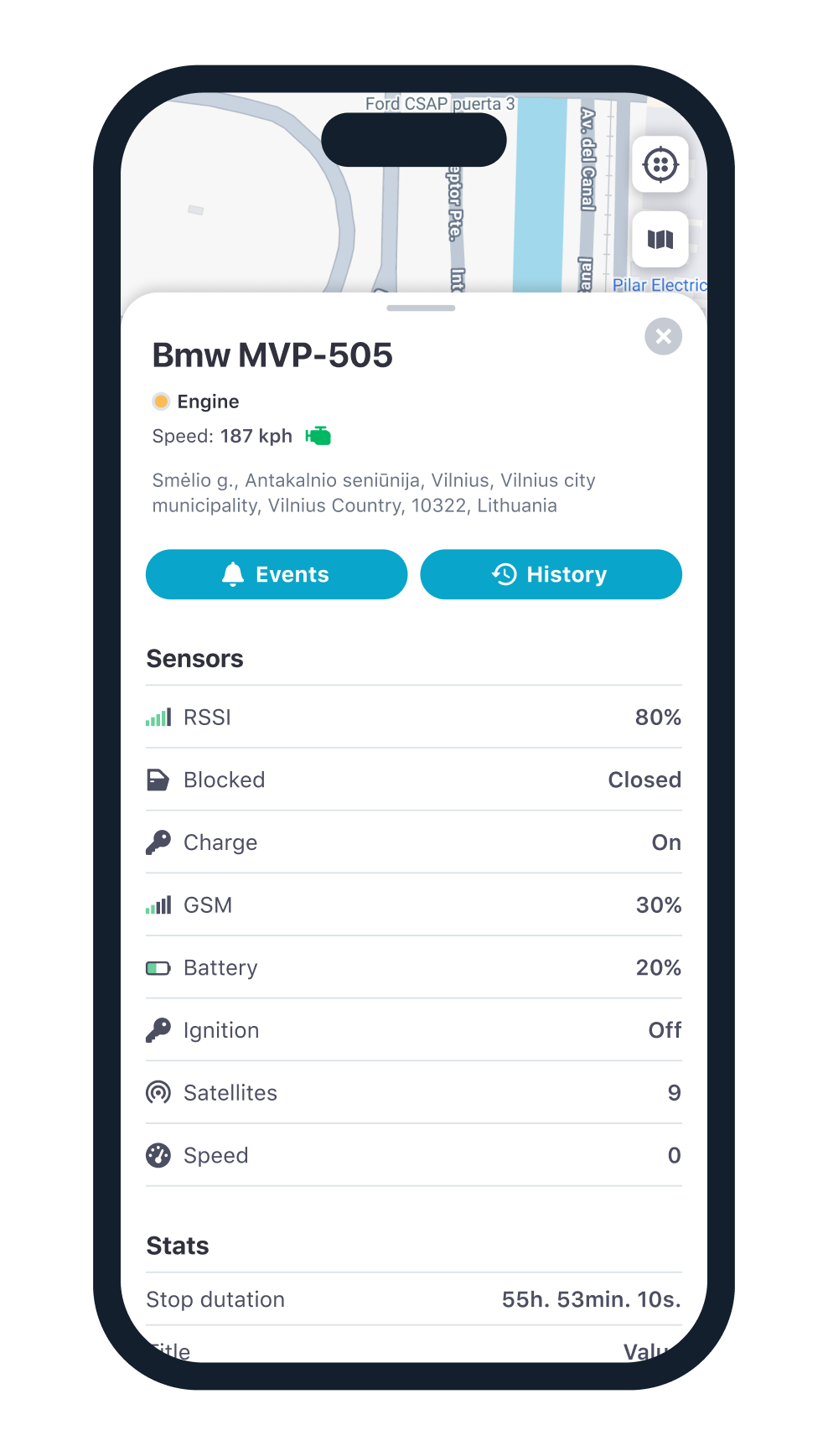
- Real-Time GPS Tracking: Keep tabs on your vehicles with live updates on speed, location, and movement directly from your device.
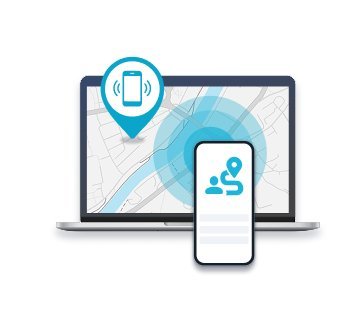
- Instant Alerts: Stay informed with immediate notifications for critical events like unauthorized access, speeding, and geofence breaches.
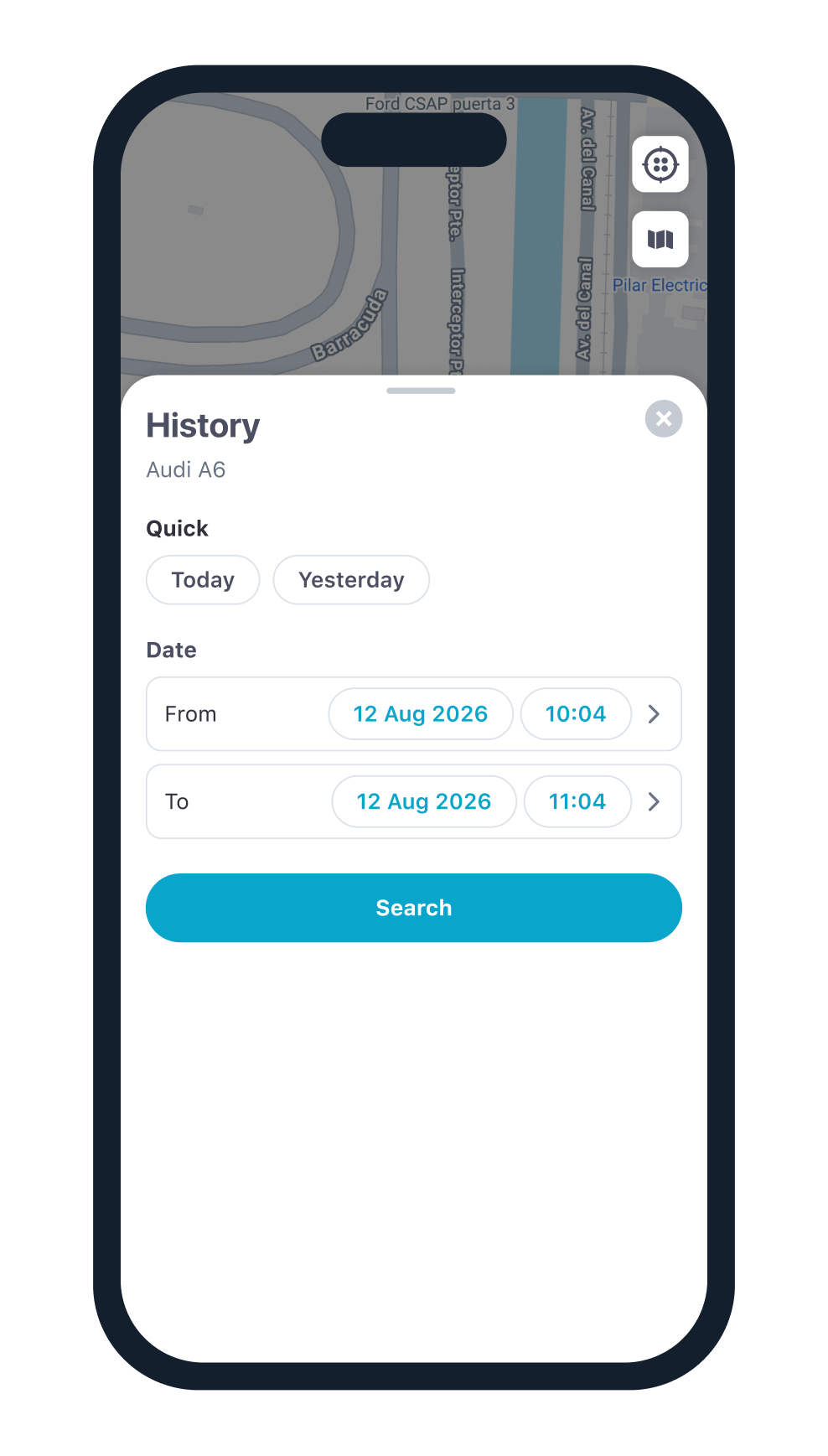
- Comprehensive History Logs: Access detailed reports on your vehicle’s travel history, including distances traveled, stopovers, and more, for accurate tracking.
- Geofencing Technology: Set up safe zones and get alerted instantly if your vehicle enters or leaves a designated area.
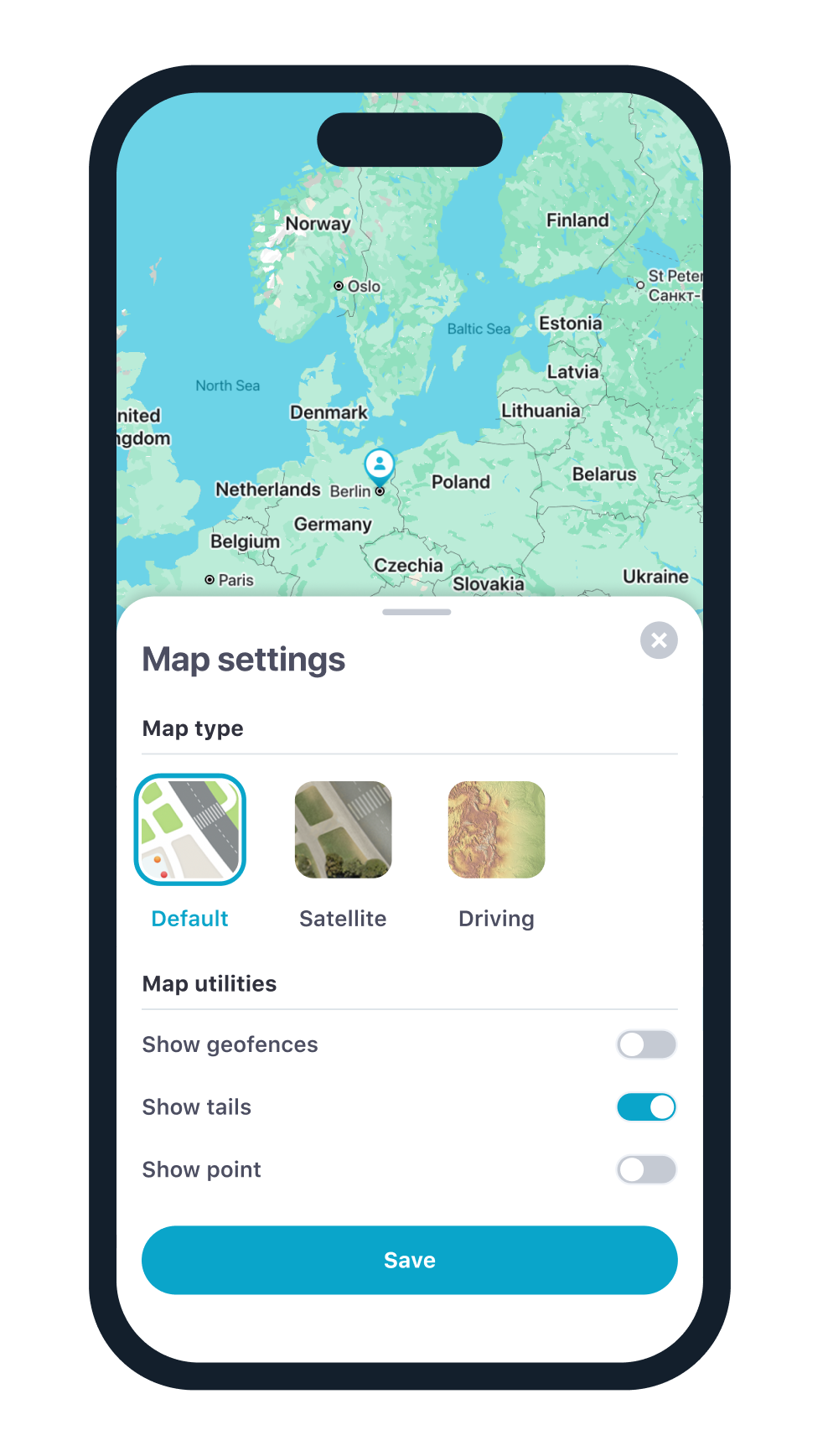
- Points of Interest: Easily mark and manage significant locations, enhancing route planning and monitoring.
- Fuel Consumption Insights: Gain valuable insights into your fuel usage to help reduce costs and increase efficiency.
GPSWOX Mobile Client Manual: Android / iOS
- After opening the app, you will see the login screen. Enter your username and password to log in to your GPSWOX account.
Please leave the server field unchanged unless your tracker is configured to use a different server.
If you do not have an account yet, you can register for free at GPSWOX.COM or tap “Get started!” - To explore the application without an account, tap the “Try demo” button.
- After logging in, you will be taken to the main screen, where you can access all app features.
How to find a device?
- On the main screen, you will see a list of your groups in a panel at the bottom of the screen. Swipe it up to expand the full list or swipe it down to collapse it.
- Select a group to view all devices within that group, along with basic information about their current status.
- Tap on a device name to see detailed information about that device.
- If you know the device name, you can quickly find it by entering it in the search field.
How to view Events?
- On the main screen, tap the bell icon next to the search field to open the events list. This section shows all recent notifications and activity.
- Tap on any event to view more detailed information.
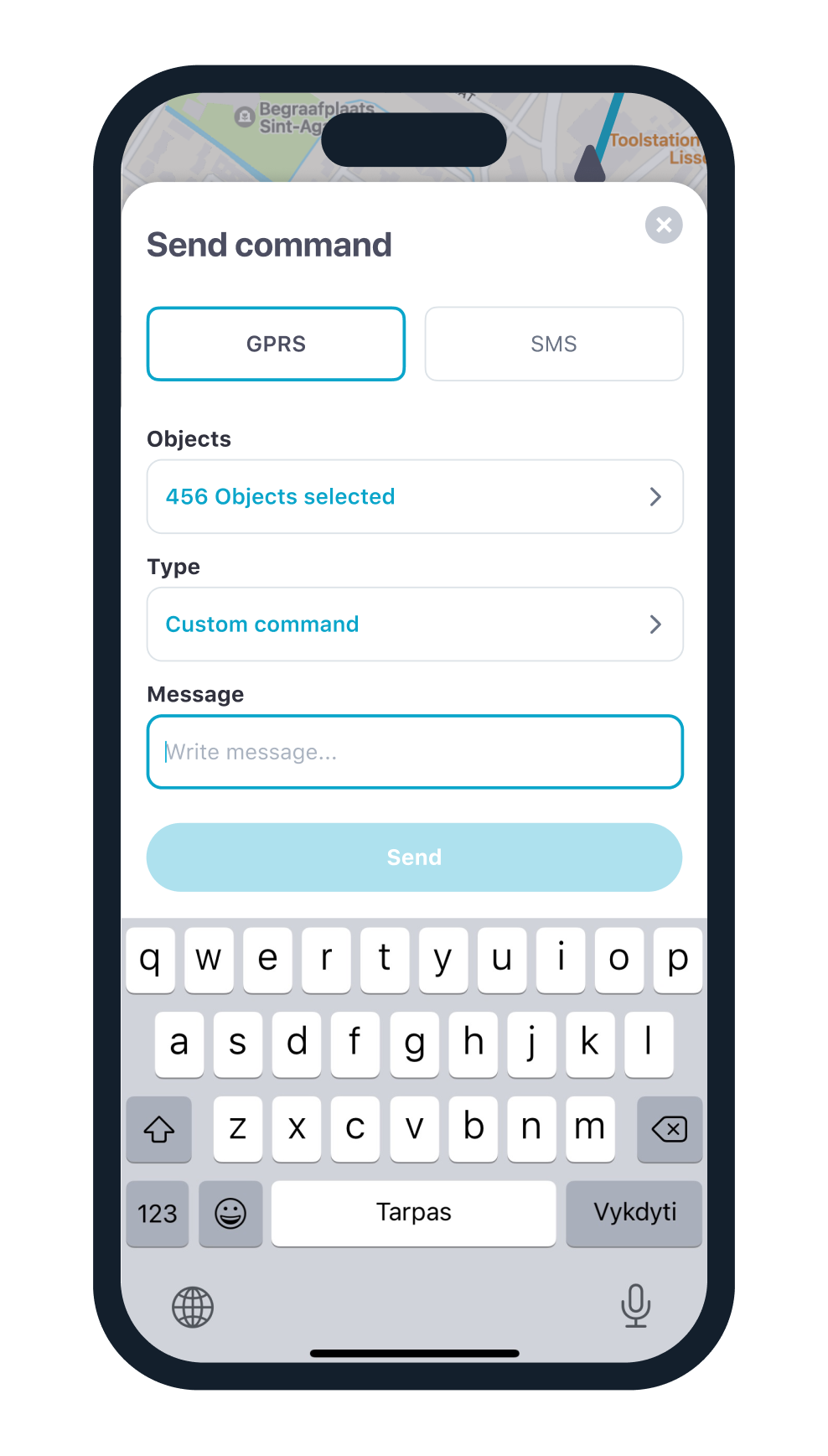
How to Send command?
- Select a group, then choose the device you want to manage. The device information screen will open.
- Tap “Send SMS/GPRS command”.
- Select the command type (SMS or GPRS).
- Fill in the required fields and tap “Send”.
How to see History?
- Select a group, then choose the device you want to view. The device information screen will open.
- Tap “History”.
- Select the time period you want to view and tap “Search”.
- The system will display data for the selected time period.
- Tap “Playback” to view the device’s movement on the map along with the event list below.
How to change settings or preferences of the app?
- On the main screen, tap the gear icon in the top-right corner, then select “Preferences”.
- In this section, you can change units, time format, and language.
Start your GPS tracking business for free now!
 100% Money-back guarantee
 No hidden fees or contracts
 Upgrade or cancel anytime
Global market leader
100,000+ customers trust GPSWOX for their tracking needs.
And 1,500+ people have started their own GPS tracking
business with our
white label GPS software.


Global users

Units tracked

Active countries

Data points collected